
Setting Up Your Account
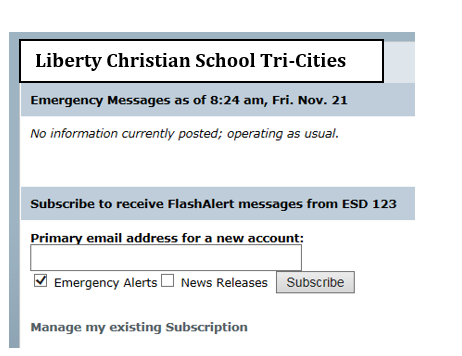
Setting up your account
- Go to http://flashalert.net/id/LCS-TC
- Enter your email address into the box that’s says “Primary email address for a new account”
- Click Subscribe
- Confirm your email address and create a password
- Click Create your Account
A validation code will be sent to your email address to confirm your account
Adding Subscriptions
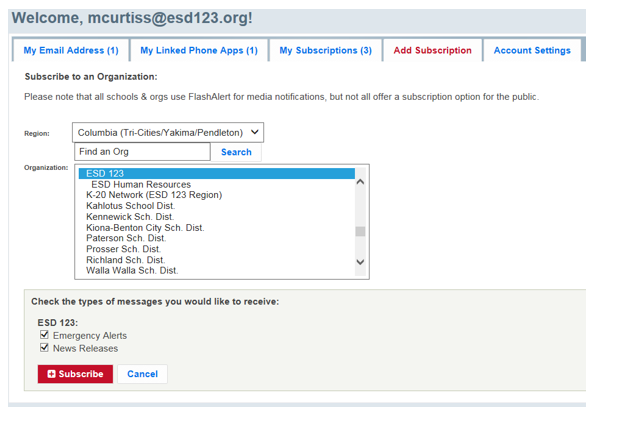
Adding subscriptions
Once you have entered the validation code and confirmed your email account, you can add additional emails and/or cell phone accounts.
- Under the Add Subscription tab, click on the Select your Region drop-down menu and choose Columbia (Tri-Cities/Yakima/Pendleton)
- Scroll down to the organizations listed under Tr-Cities area School Districts and select [Liberty Christian School Tri-Cities]
- Click the red Subscribe button
- You can now add any other school districts and/or organization from which you would like to receive emergency messages or news releases by finding the organization and click subscribe.
Link Your Phone
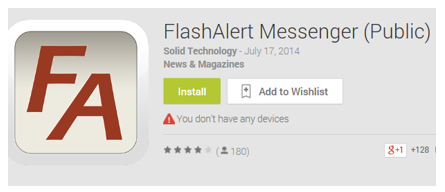
After you create your account, link your phone
- On your cell phone, download the free App called “FlashAlert Messenger”
- Enter your email address and the password you created above.
- Your cell phone should now be linked to your FlashAlert Messenger account and the subscriptions you selected.